


 198
198
The Mitel Connect application can be used to make and answer calls using your PC instead of your desk phone.
To begin, launch and login to the Mitel Connect Application. (If you do not have the application installed, or need login assistance, please contact the helpdesk.)
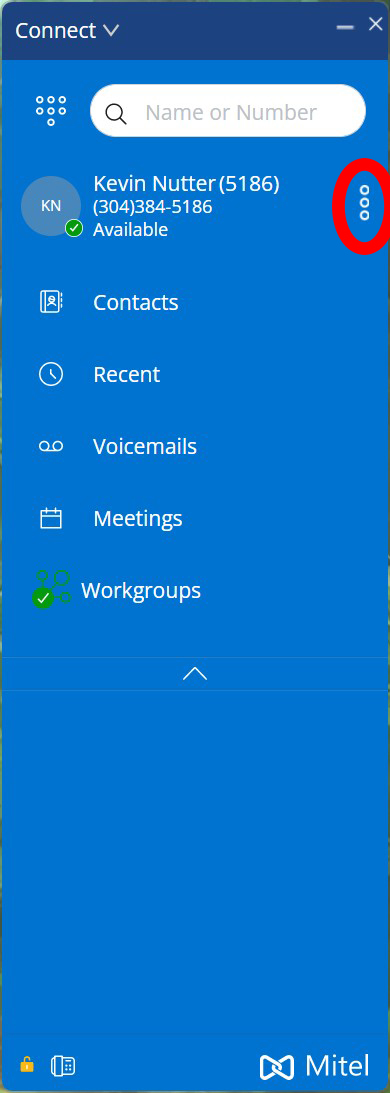
From the home screen, select the vertical menu button at the right of your extension information, circled in red in the screenshot below:
Select "Softphone" from the drop down list:
(If you do not have an option for softphone, please contact the helpdesk.)
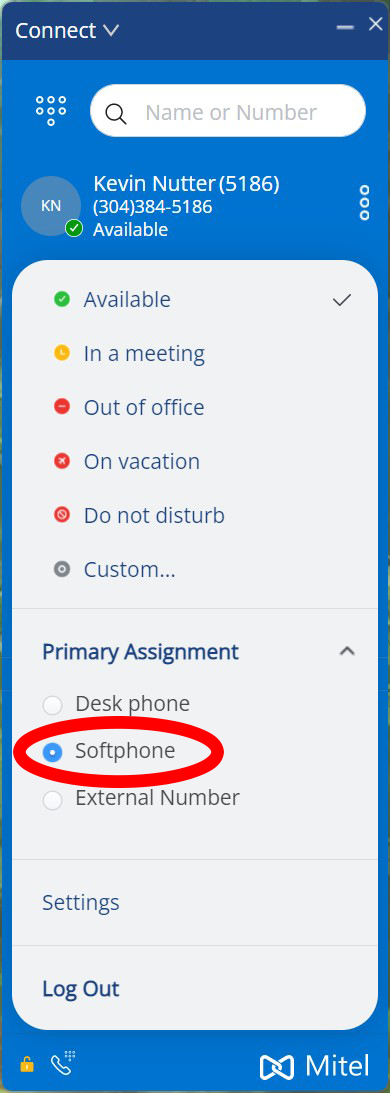
To switch back to your desk phone, simply select "Desk Phone" from the list above the Softphone option.
IMPORTANT! You will not be able to use your desk phone and softphone simultaneously. When you return to your office, if your phone shows the extension name "Anonymous", Then the softphone option is still enabled in Mitel connect, and you will be unable to use your desk phone until you change it back.

